Out of the box, SuiteCRM 8 ships with a clean but fairly generic theme. It works – but it rarely matches your brand, and most installations end up looking exactly the same.
Many teams would love to:
- Apply brand colors to the CRM
- Make the interface easier on the eyes
- Improve adoption by giving users a UI they actually like
Out of the box, SuiteCRM ships with a clean but very generic theme. It works – but it doesn’t look or feel like your company.
Most teams would love to:
- Apply brand colors and fonts to the CRM
- Make buttons and key actions stand out
- Give users a modern UI so they actually enjoy working in SuiteCRM
The problem?
Creating a custom SuiteCRM theme by hand usually means editing SCSS/CSS, dealing with front-end build tools, and worrying what will break on the next upgrade. That’s not realistic for many CRM admins.
This is where two add-ons come in:
- MTS Theme Builder – for SuiteCRM 7
- MTS SuiteCRM 8 Theme Editor – for SuiteCRM 8
Together they cover almost every current SuiteCRM installation and let you design a custom SuiteCRM theme through a visual editor – no coding required.
Why a custom SuiteCRM theme matters
Stronger branding inside your CRM
Your CRM is the internal “face” of your company. When the interface follows your brand palette and style, it feels like part of your own product ecosystem, not just another generic tool.
A custom SuiteCRM theme lets you:
- Use your primary/secondary brand colors
- Match buttons, headers, sidebars and links to your design system
- Present a more professional image when external users or partners log into your CRM
Better user adoption and usability
Design is not only about “looking pretty”. It affects how quickly users find what they need:
- High-contrast buttons for the main actions
- Softer colors for less important areas
- Clear separation between sections and panels
When SuiteCRM feels modern and easy on the eye, users are more willing to live inside the CRM instead of falling back to spreadsheets.
Visual separation for different companies or instances
If you manage multiple SuiteCRM environments (for different brands, subsidiaries, or clients), distinct themes help users instantly recognize where they are:
- Blue theme for Brand A
- Green theme for Brand B
- Dark theme for internal/test environments
All still running on the same SuiteCRM core.
Custom SuiteCRM theme for both SuiteCRM 7 and SuiteCRM 8
Whether you’re on SuiteCRM 7 or SuiteCRM 8, you can move beyond the default look:
- On SuiteCRM 8, you can design a custom SuiteCRM theme using SuiteCRM 8 Theme Editor – fully visual, responsive and upgrade-friendly.
- On SuiteCRM 7, you can achieve a similar result using MTS Theme Builder, which adds a no-code theme designer on top of the classic SuiteCRM UI.
Both add-ons share the same goal:
Give you a custom SuiteCRM theme editor inside Admin, so you never have to touch SCSS or CSS files.
Let’s look at each one.
Custom SuiteCRM theme for SuiteCRM 8 – SuiteCRM 8 Theme Editor
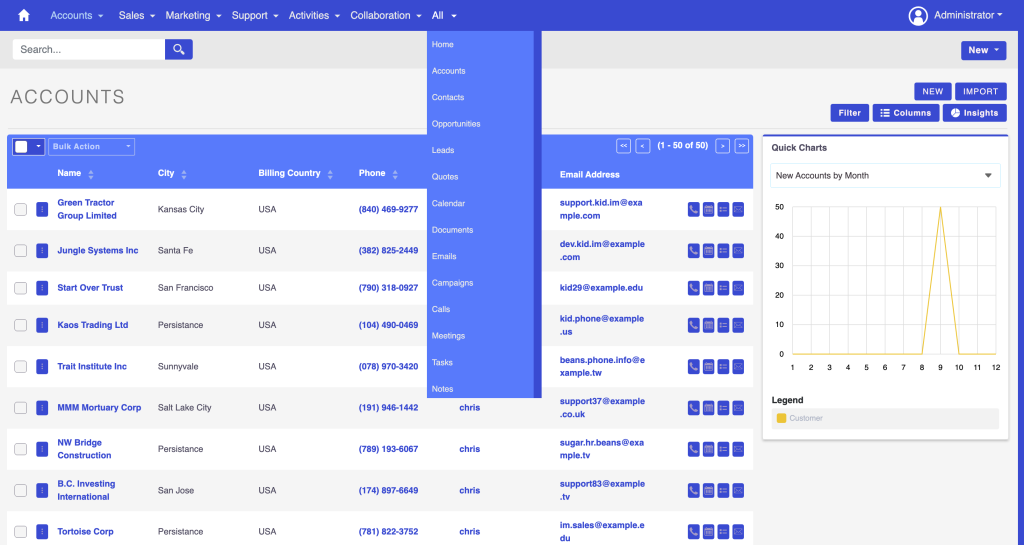
SuiteCRM 8 Theme Editor is built specifically for the new SuiteCRM 8 front-end. It plugs into the Admin area and lets you configure colors and styling via a friendly UI.
Key features
1. Intuitive color customization
From the Theme Editor screen you can:
- Set primary, secondary and accent colors
- Control background, text, border and button colors
- Fine-tune navigation bar, sidebar, header, panels, tabs and widgets
All changes are done visually – no need to edit SCSS variables or run build commands.
2. Unlimited color combinations
Theme Editor doesn’t lock you into a small palette. You can match:
- Exact brand hex codes
- Light & dark variants for hover/active states
- Different color sets for buttons (primary, danger, outline, etc.)
You’re free to create anything from a minimal, neutral theme to a bold high-contrast interface.
3. Responsive SuiteCRM 8 theme
Themes are generated on top of the SuiteCRM 8 front-end stack, so they remain:
- Fully responsive on desktop, tablet and mobile
- Consistent across different screen sizes
That’s important if your sales or field staff use SuiteCRM on phones.
4. No coding or front-end tooling
Normally, customizing SuiteCRM 8 styling means:
- Editing SCSS files
- Running npm/webpack build steps
- Keeping everything in sync during upgrades
With Theme Editor, all of that is replaced by:
- A configuration screen in Admin → Theme Editor Settings
- Point-and-click styling
- One-click deploy / re-deploy buttons
It’s designed for CRM admins and consultants, not front-end engineers.
5. Save, deploy and roll back themes
The workflow is simple:
- Create a new theme in Theme Editor.
- Save your configuration.
- From the theme’s detail view, choose Deploy / Re-deploy Theme.
- If you don’t like the result, switch back to the default SuiteCRM 8 theme.
You can experiment without fear: if a color choice doesn’t work, you can always roll back.
Custom SuiteCRM theme for SuiteCRM 7 – MTS Theme Builder
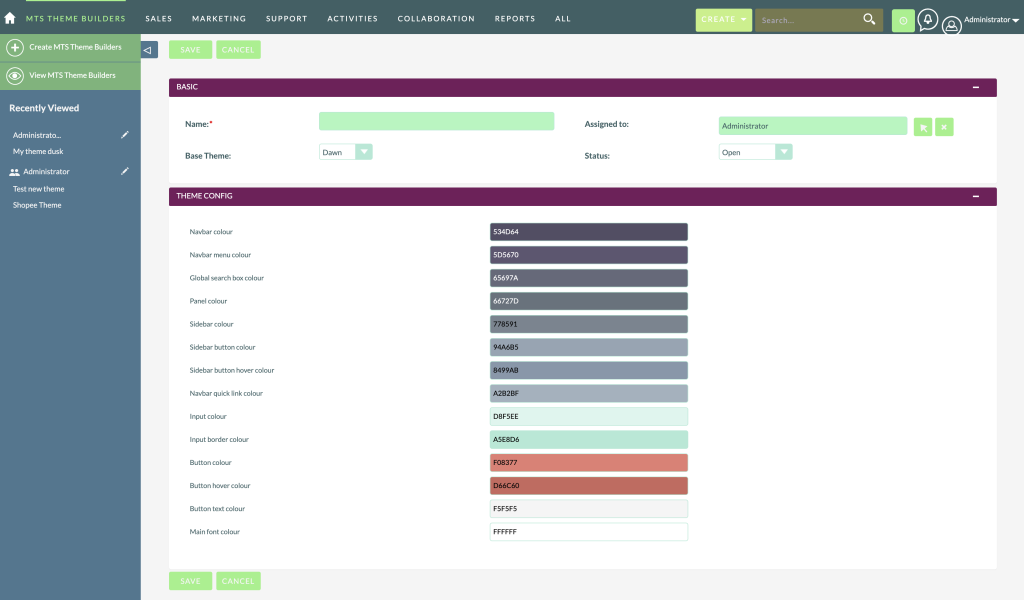
If you’re running SuiteCRM 7.10–7.14, the UI is based on the classic theme system. MTS Theme Builder extends that with a visual theme designer that’s very similar in concept to the 8 Theme Editor.
Key features
1. No-code theme designer for classic SuiteCRM
Inside Admin, Theme Builder adds a configuration screen where you can:
- Choose a base theme (e.g. the default SuiteCRM theme)
- Customize colors for:
- Top menu and navbar
- Module menu, sidebar and search area
- ListView and EditView rows, headers and panels
- Buttons, inputs and text
You never have to edit CSS or PHP files by hand.
2. Multiple custom themes, unlimited users
You can create multiple custom themes in one instance – for example:
- “Corporate Light” theme for most users
- “Dark Mode” theme for power users
- “Client A” theme for a specific customer portal
Users can select their preferred style from Layout Options → Style in their profile, or you can set a default theme system-wide.
3. Upgrade-friendly and instance-based
Theme Builder works on top of the supported SuiteCRM 7 versions and is designed to be:
- Upgrade-safe – you’re not hacking core CSS files
- Licensed per instance with unlimited users
So you can roll it out across your SuiteCRM 7 environment without worrying about per-user costs.
4. Simple deployment workflow
Typical steps:
- Install the add-on via Module Loader and run Quick Repair and Rebuild.
- Enter your license key in MTS Theme Builder License Configuration.
- Open Theme Builder Settings, create a new theme starting from a base theme.
- Save and Deploy / Re-deploy the theme.
- Users switch to it in their profile, or you make it the new default.
Within minutes, your classic SuiteCRM 7 instance gets a fresh, on-brand look.
When should you invest in a custom SuiteCRM theme?
Using a custom SuiteCRM theme (via Theme Builder or Theme Editor) is especially useful if:
- You want SuiteCRM to look like part of your product stack, not a separate generic system
- You’re rolling out SuiteCRM to new departments and want strong first impressions
- Users complain that the default theme is “too flat”, “too bright” or simply “boring”
- You manage multiple SuiteCRM instances and need quick visual cues to avoid confusion between prod/staging/clients
On the other hand, if you’re in a very early proof-of-concept phase with only a few users, you might delay theme customization until the process side is stable. But as soon as SuiteCRM becomes business-critical, investing a bit of time in the user experience usually pays off quickly.
Turn the default SuiteCRM UI into your own branded workspace
You don’t have to accept the default look forever or maintain fragile CSS hacks.
With:
- MTS Theme Builder on SuiteCRM 7, and
- MTS SuiteCRM 8 Theme Editor on SuiteCRM 8,
you can build a custom SuiteCRM theme that:
- Matches your brand colors and style
- Improves clarity and usability for everyday users
- Is easy to maintain and safe across upgrades
- Can be rolled out across unlimited users in your instance
If you’re planning a new SuiteCRM rollout or want to refresh an existing system, a custom SuiteCRM theme is one of the fastest ways to increase user satisfaction. We can help you design, configure and deploy themes for both SuiteCRM 7 and SuiteCRM 8 so your CRM finally looks and feels like it belongs to your business.
If you want a custom SuiteCRM theme but don’t want to maintain your own front-end build, MTS SuiteCRM 8 Theme Editor is built exactly for that.
This plugin gives you an intuitive UI to design your own theme for SuiteCRM 8 – with unlimited colors, responsive design, and no coding required.
Why a custom SuiteCRM theme matters
Stronger branding inside your CRM
Your CRM is where your sales, support and management teams spend a large part of their day. When the interface uses your real brand palette – not a default grey and purple – it feels like part of your product ecosystem, not a generic tool from somewhere else.
A custom SuiteCRM theme lets you:
- Use your primary and secondary brand colors
- Apply consistent button, header and background styles
- Give internal teams and external users (if they log in) a more professional, branded experience
Better user adoption and usability
Small visual changes can have a big impact on usability:
- Clearer contrast between active and inactive elements
- Highlight important actions with accent colors
- Reduce “visual noise” by toning down less important areas
When your SuiteCRM screens look modern and intentional, users are more willing to live inside the CRM instead of defaulting back to spreadsheets and notes.
Personalization for different companies or instances
If you manage multiple SuiteCRM 8 instances (for different business units or clients), custom themes help you differentiate each environment visually – while still using the same core system.
What is SuiteCRM 8 Theme Editor?
MTS SuiteCRM 8 Theme Editor is an add-on that allows admins to create and manage custom SuiteCRM themes through a point-and-click interface. No SCSS, no build commands.
Key ideas:
- Unlimited color options for headers, buttons, text and UI elements
- Responsive design so your custom theme works on desktop, tablet and mobile
- No coding required – designed for admins and power users, not front-end developers
- Save and reuse themes across environments or teams
Supported SuiteCRM versions: 8.0.0 to 8.8.1.
Key features for creating your custom SuiteCRM theme
1. Intuitive color customization
From the Theme Editor screen in Admin, you can:
- Pick primary, secondary and accent colors
- Adjust background, text, border, and button styles
- See changes in a visual interface instead of editing SCSS variables by hand
This makes it realistic to fine-tune your theme until it matches your brand guidelines.
2. Unlimited color combinations
You’re not restricted to a small palette. Theme Editor lets you work with any color to style:
- Top navigation and sidebar
- Buttons (default, primary, danger, etc.)
- Links, icons and text
- Panels, tabs and widgets
You can go for a subtle look with soft neutrals, or a bold high-contrast theme – the tool doesn’t limit your choices.
3. Responsive SuiteCRM theme out of the box
Themes built with SuiteCRM 8 Theme Editor are designed to stay responsive:
- Layouts adapt to laptop, tablet and mobile screens
- Colors and components stay consistent across devices
This is especially important if your users access SuiteCRM from phones or tablets in the field.
4. No coding or build tools required
Manually building a SuiteCRM 8 theme involves editing SCSS and running the front-end build pipeline – something many CRM admins are not comfortable with.
Theme Editor removes that barrier:
- Everything is configured through the SuiteCRM Admin UI
- No need to touch SCSS, webpack or npm
- Much easier to maintain over time, even as staff changes
5. Save, deploy, and roll back themes
The plugin includes a simple lifecycle:
- Create a theme in the Theme Editor settings
- Save your configuration
- Deploy / Re-deploy the theme from the theme detail view
- If needed, Revert back to the standard SuiteCRM 8 theme with one click
This gives you the freedom to experiment with design without risking downtime. If something doesn’t look right, you can quickly roll back.
How to create a custom SuiteCRM theme (high-level)
- Install the add-on
- Download the zip from SuiteCRM Store
- Upload and install it via Module Loader
- Run Quick Repair and Rebuild
- Configure the license
- Go to Admin → MTS SuiteCRM 8 Theme Editor License Configuration
- Enter your license key and save
- Create your theme
- Open Admin → MTS SuiteCRM 8 Theme Editor Settings
- Click “Create MTS SuiteCRM 8 Theme Editor”
- Adjust the colors and options until you’re happy with the look
- Deploy the theme
- From the theme detail view, choose Actions → Deploy/Re-deploy Theme
- Wait for the process to finish and refresh SuiteCRM
- Iterate and refine
- Get feedback from users
- Update the theme, save, and redeploy as needed
When does a custom SuiteCRM theme make sense?
A custom SuiteCRM theme using SuiteCRM 8 Theme Editor is especially valuable if:
- You want your CRM to match your corporate identity
- Users complain that the default UI is “too flat” or uninspiring
- You manage SuiteCRM for multiple brands or business units and want each to feel distinct
- You don’t have front-end developers dedicated to maintaining SCSS-based themes
Whether you’re a small team or a larger enterprise, a tailored CRM interface helps you stand out and improves internal perception of the system.
Turn the default SuiteCRM 8 UI into your own branded workspace
Instead of living with a one-size-fits-all look or maintaining fragile CSS hacks, you can use SuiteCRM 8 Theme Editor to build a custom SuiteCRM theme in a safe, upgrade-friendly way:
- Align SuiteCRM with your brand colors
- Improve usability and user satisfaction
- Manage themes from the Admin UI, without code
- Deploy and roll back changes in a few clicks
If you’re planning a new SuiteCRM 8 project or want to refresh an existing instance, a custom SuiteCRM theme is one of the quickest wins to improve adoption. Our team can help you design, configure and deploy a theme that fits your brand – using SuiteCRM 8 Theme Editor as the core tool.