SuiteCRM Email Management Configuration Guide
⚡ Quick Summary / Key Takeaway
SuiteCRM Email Management: SuiteCRM Email Management centralizes corporate communications by integrating external email providers directly into the CRM. By configuring SMTP for outbound campaigns and IMAP for inbound routing, teams can automate workflow triggers, link emails to specific CRM records, and maintain a complete historical context of all customer interactions.
Table of Contents
Effective communication is the lifeblood of customer relationship management. Properly configuring SuiteCRM Email Management transforms your platform from a simple contact database into a powerful, centralized hub for all client interactions. By bridging the gap between your standard email client and your CRM records, businesses can ensure that every proposal, support ticket, and follow-up is accurately tracked and visible to the entire team. This guide explores the architecture, configuration workflows, and strategic enhancements necessary to deploy a robust email ecosystem within SuiteCRM.
The Architecture of SuiteCRM Email Management
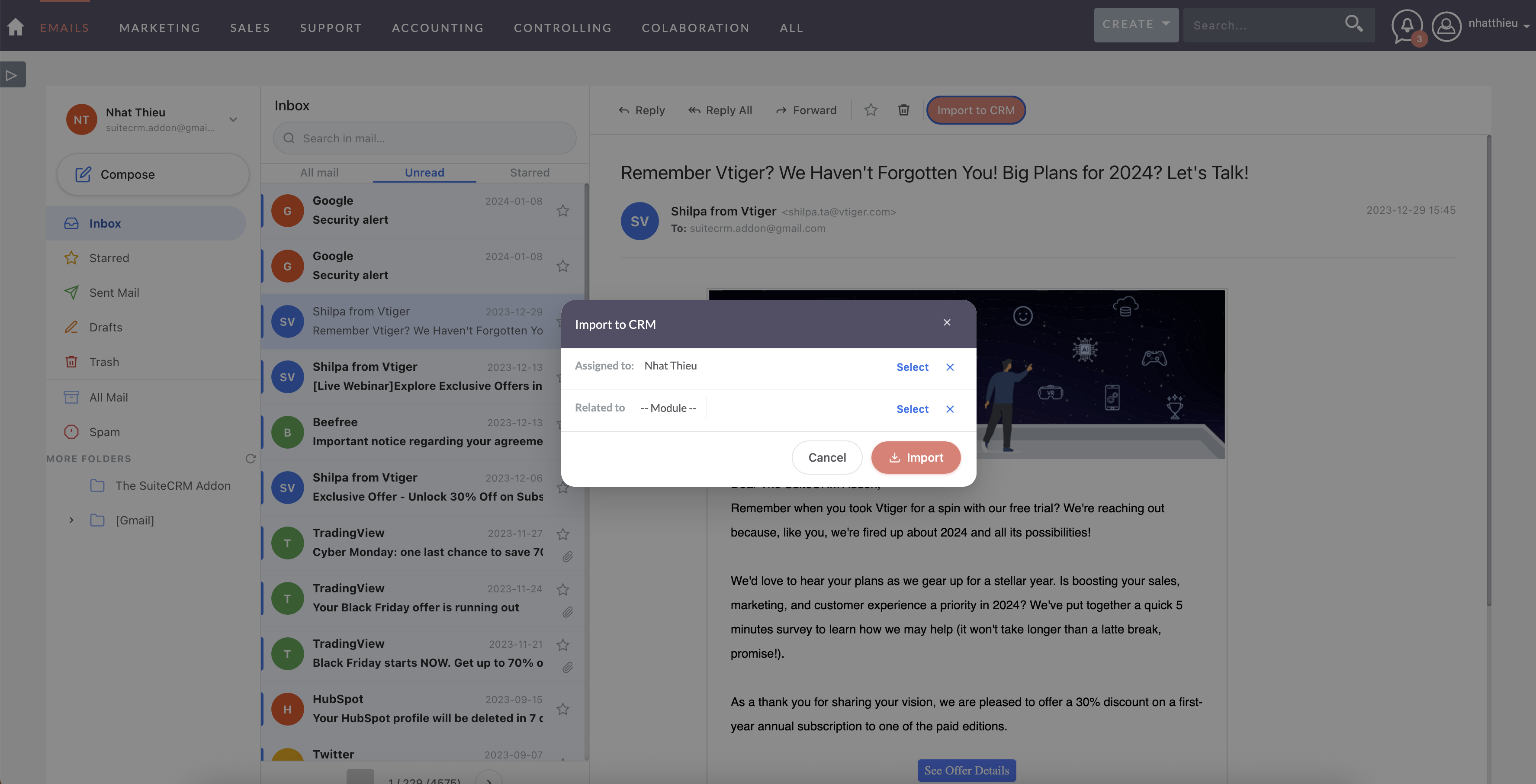
Conversely, inbound communications are managed through IMAP (Internet Message Access Protocol). SuiteCRM utilizes background scheduler tasks (Cron jobs) to periodically poll designated mailboxes. When new emails arrive, the system can automatically import them, attach them to existing Contact or Account records based on the sender’s address, and even generate new Lead or Case records. Understanding this separation is critical for administrators, as troubleshooting deliverability issues versus synchronization failures requires entirely different administrative approaches.
Step-by-Step System Configuration
Configuring Outbound Email (SMTP)
1. Navigate to the Admin panel and select Email Settings.
2. In the Outbound Mail Configuration section, select your designated mail provider or choose ‘Other’ for custom corporate servers.
3. Input the required SMTP server address, port (typically 465 for SSL or 587 for TLS), and authentication credentials.
4. Utilize the Send Test Email functionality to verify the connection and routing before saving.
Establishing Inbound Group Mailboxes
1. From the Admin panel, navigate to Inbound Email and select Create Inbound Email Account.
2. Define the mailbox purpose (e.g., Support, Sales) and input the IMAP server details alongside standard SSL/TLS port configurations.
3. Configure the Handling Options. You can elect to automatically import emails, create Cases from incoming messages, and define how attachments are stored within the CRM document repository.
4. Ensure your system Cron jobs are running correctly, as these are responsible for executing the polling intervals defined in your inbound settings.
Enhancing Capabilities with Premium Plugins
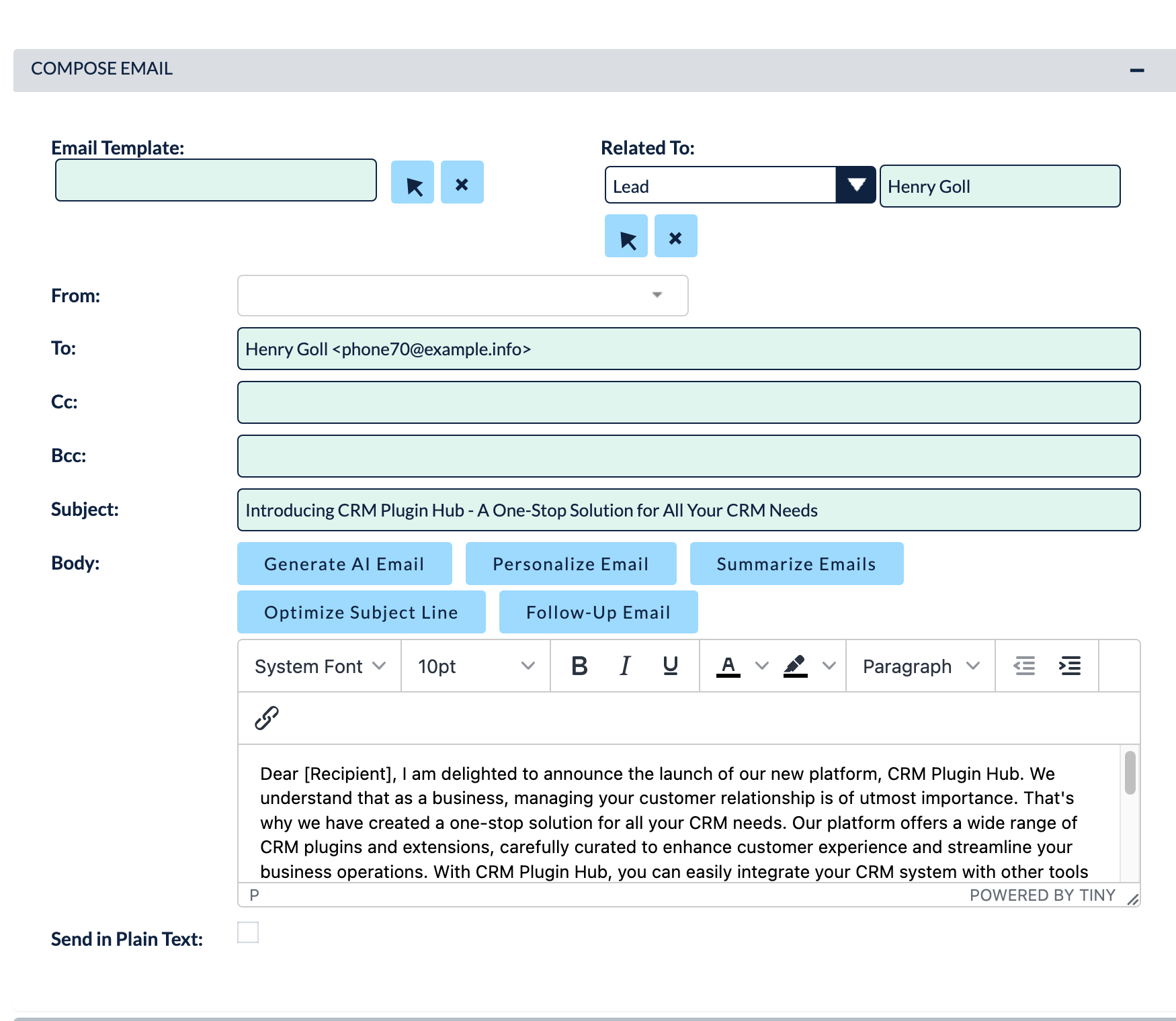
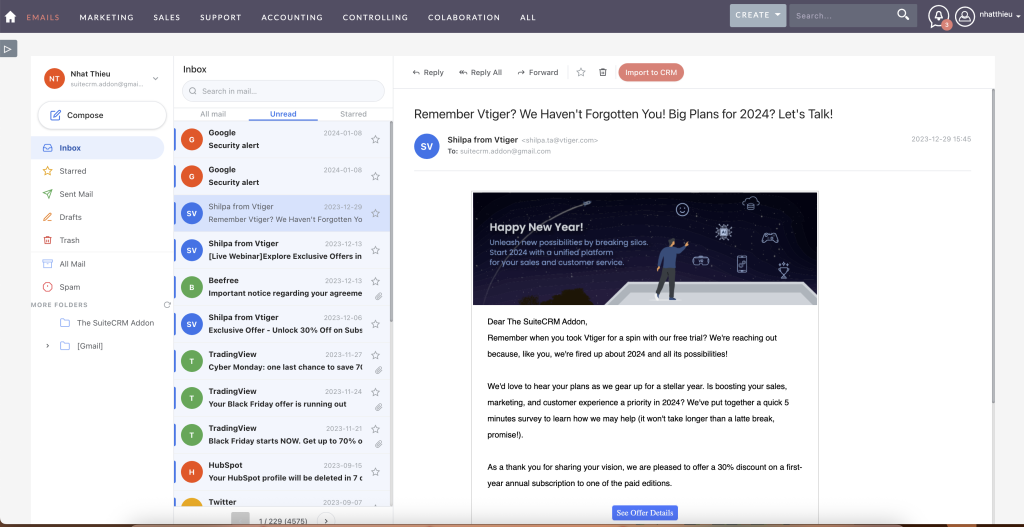
To overcome synchronization instability and modernize the user experience, integrating MTS Mail Pro significantly upgrades the core email handling capabilities. It offers enhanced connectivity protocols, better folder synchronization, and a more intuitive interface for users managing high volumes of daily correspondence.
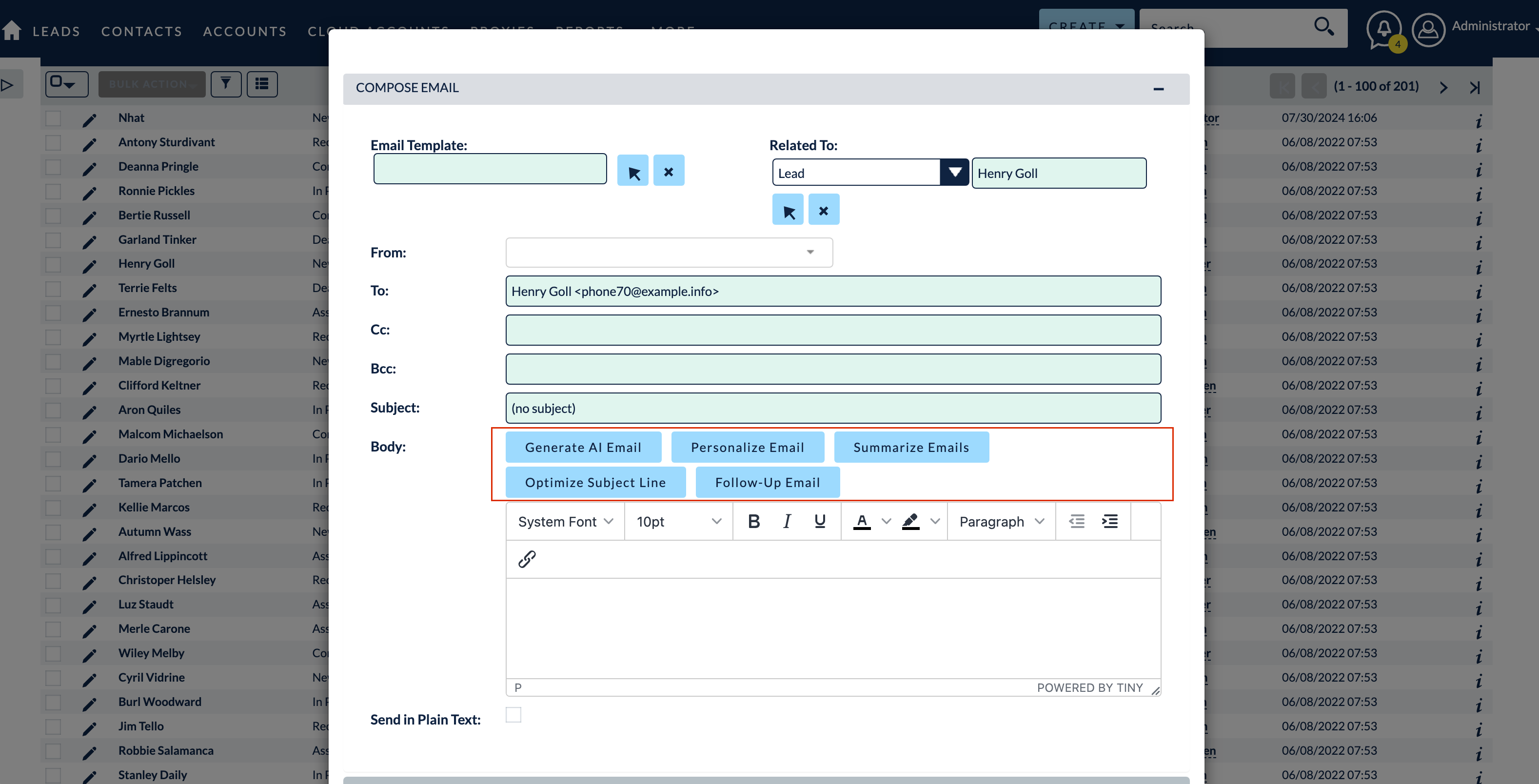
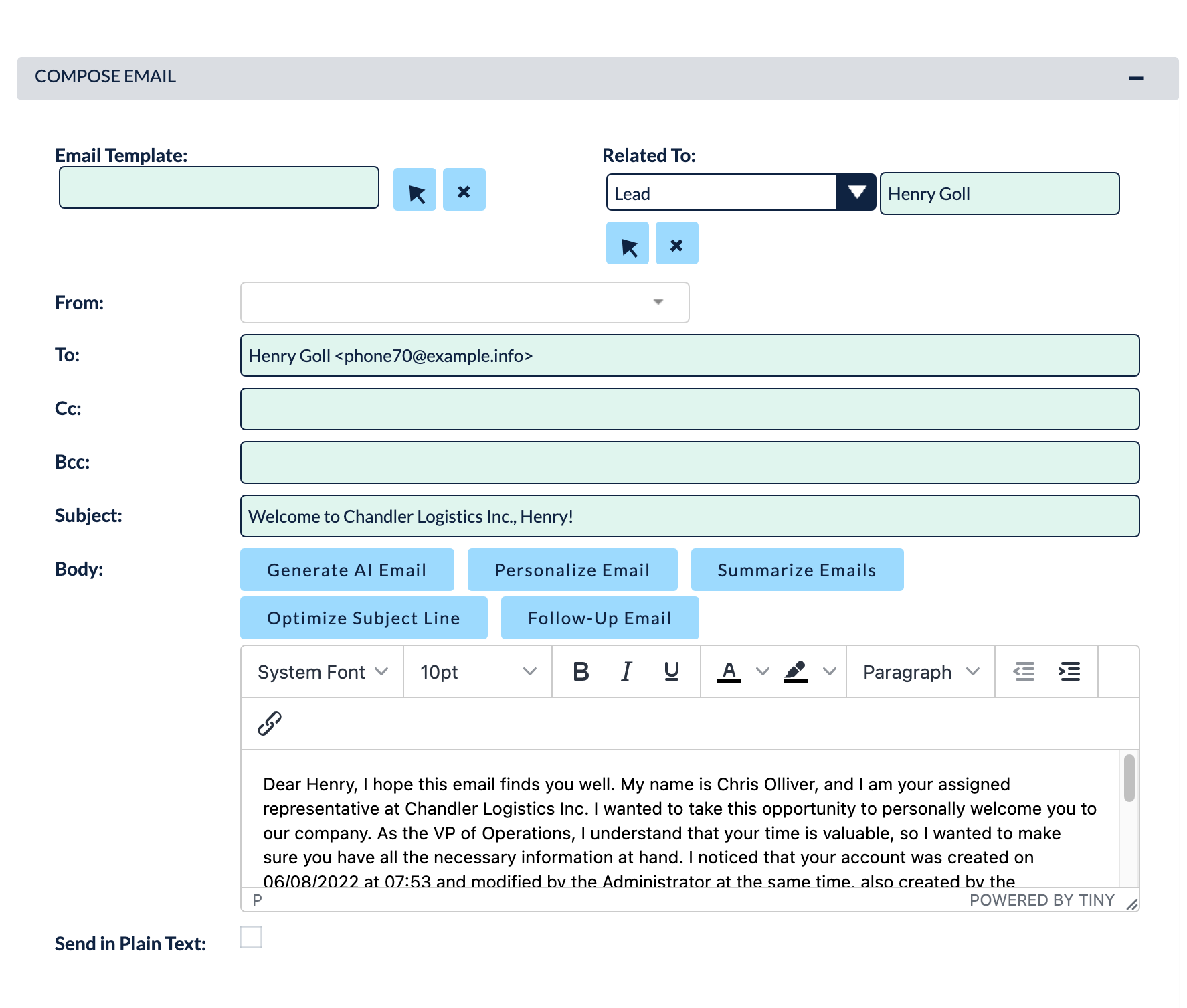
Furthermore, modern sales and support teams can drastically reduce response times by leveraging artificial intelligence. The MTS AI Email Writer plugin integrates directly into the SuiteCRM compose window. By analyzing the context of the CRM record and previous communications, it allows representatives to instantly generate professional, context-aware email replies, ensuring consistent brand messaging while saving hours of manual drafting.
Enterprise Implementation Best Practices
Cron Job Optimization: Inbound email retrieval is entirely dependent on system Cron jobs. Ensure your scheduler is configured to run at optimal intervals—frequent enough to provide timely updates for support teams, but balanced to prevent server resource exhaustion.
Database Storage Management: Emails with large attachments can rapidly bloat the SuiteCRM database and file system. Implement strict attachment size limits and establish a data archiving policy for communications older than two years to maintain fast search queries and efficient system backups.
Security and Deliverability: Always utilize SSL/TLS encryption for both IMAP and SMTP connections. To ensure your automated SuiteCRM outbound emails are not flagged as spam, configure SPF (Sender Policy Framework), DKIM (DomainKeys Identified Mail), and DMARC records on your corporate domain DNS settings.
✦ Key Takeaways
- ✓ Separate IMAP and SMTP configurations govern inbound routing and outbound delivery respectively.
- ✓ System Cron jobs must be precisely configured to ensure reliable inbound email synchronization.
- ✓ Advanced plugins like MTS Mail Pro provide stability and modern interface enhancements over native capabilities.
- ✓ AI-assisted drafting tools directly within the CRM drastically reduce response times for sales and support teams.
- ✓ Proper DNS configurations (SPF, DKIM, DMARC) are essential to prevent CRM-generated emails from reaching spam folders.
Conclusion
Mastering SuiteCRM Email Management is a pivotal step in maximizing the return on your CRM investment. By establishing robust inbound and outbound channels, enforcing best practices for server performance, and augmenting the system with powerful tools like MTS Mail Pro and AI Email Writer, organizations can achieve a unified, highly efficient communication strategy. If your enterprise requires assistance with complex mail server integrations, custom workflow automation, or performance optimization, the Mien Trung Soft development team is ready to deliver tailored CRM architecture solutions.
Frequently Asked Questions (FAQ)
How do I configure inbound SuiteCRM Email Management for a team?
Inbound SuiteCRM Email Management is configured by navigating to ‘Inbound Email’ in the Admin panel. You must set up a Group Mailbox using your provider’s IMAP and SSL/TLS details, and ensure your server’s Cron jobs are actively running to automatically fetch and route new messages to the appropriate CRM records.
What are the best practices for SuiteCRM email integration to ensure deliverability?
To ensure high deliverability, always use authenticated SMTP connections rather than standard PHP mail functions. Additionally, you must properly configure your domain’s DNS records, specifically SPF, DKIM, and DMARC, to authenticate the emails sent directly from your SuiteCRM server.
How can custom development improve SuiteCRM Email Management for enterprise users?
Custom development and specialized plugins resolve common limitations in the native system. Solutions like MTS Mail Pro enhance IMAP stability and UI performance, while AI integration tools can automate drafting, parse incoming data intelligently, and build complex workflow triggers based on email content.

Nhat Thieu
CRM · HRM · Custom SoftwareCRM Solution Architect & Developer specializing in open-source CRM/HRM customization, system integration, custom software and AI.